ShipNow
GitHub Login
Learn how to set up GitHub authentication with Supabase in your ShipNow application.
Create GitHub OAuth Application
Go to GitHub OAuth Applications and click "New OAuth App"
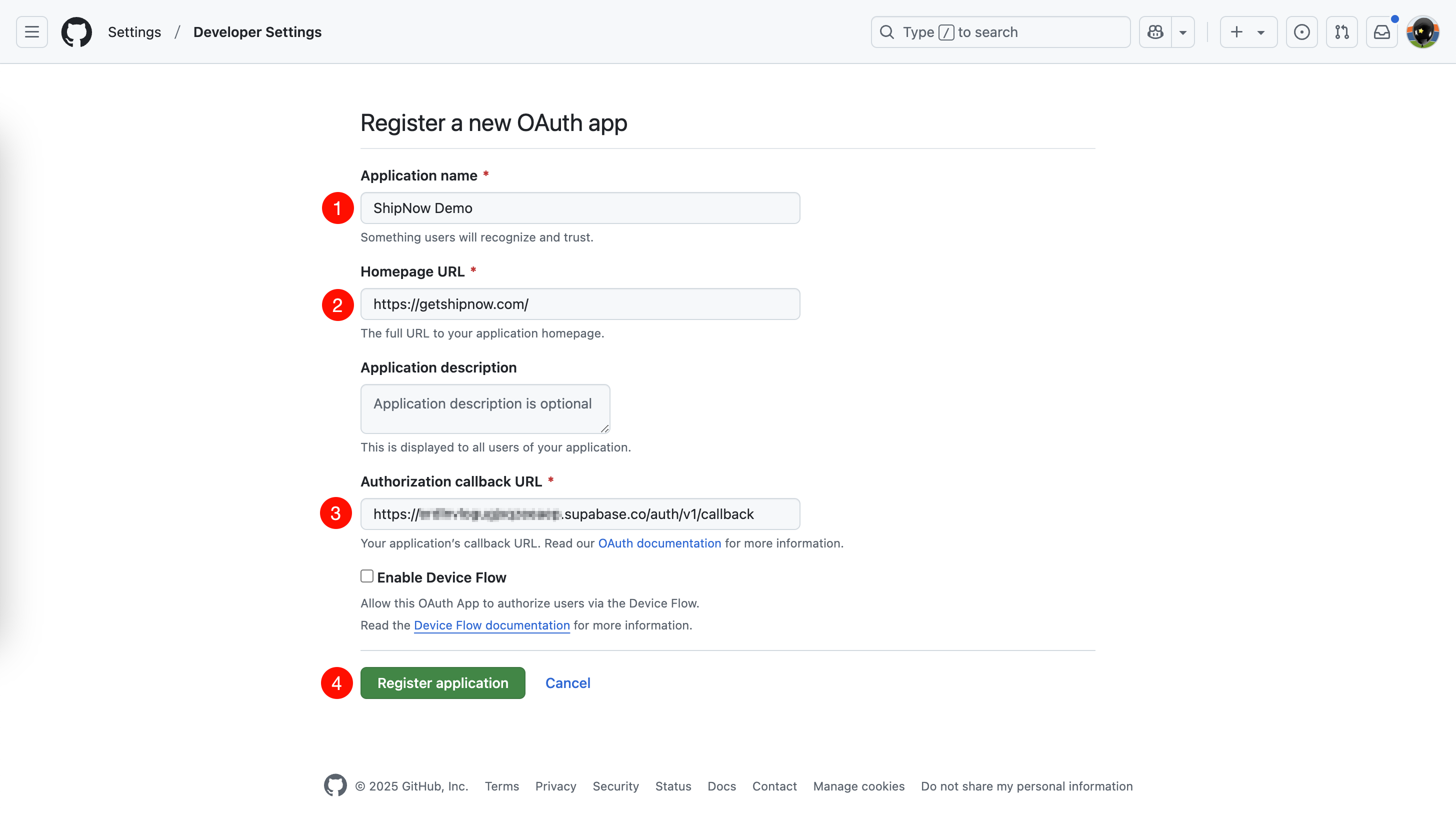
Configure GitHub OAuth Application
Register Application
Fill in the application details:
-
Application name: Your app name
-
Homepage URL: Your app URL
-
Authorization callback URL:
-
If you are using Auth.js, add the following:
Replace
http://localhost:3000with your app's URL -
If you are using Supabase, add the following:
Replace
[YOUR_PROJECT_ID]with your Supabase project ID
-
-
Click "Register application"
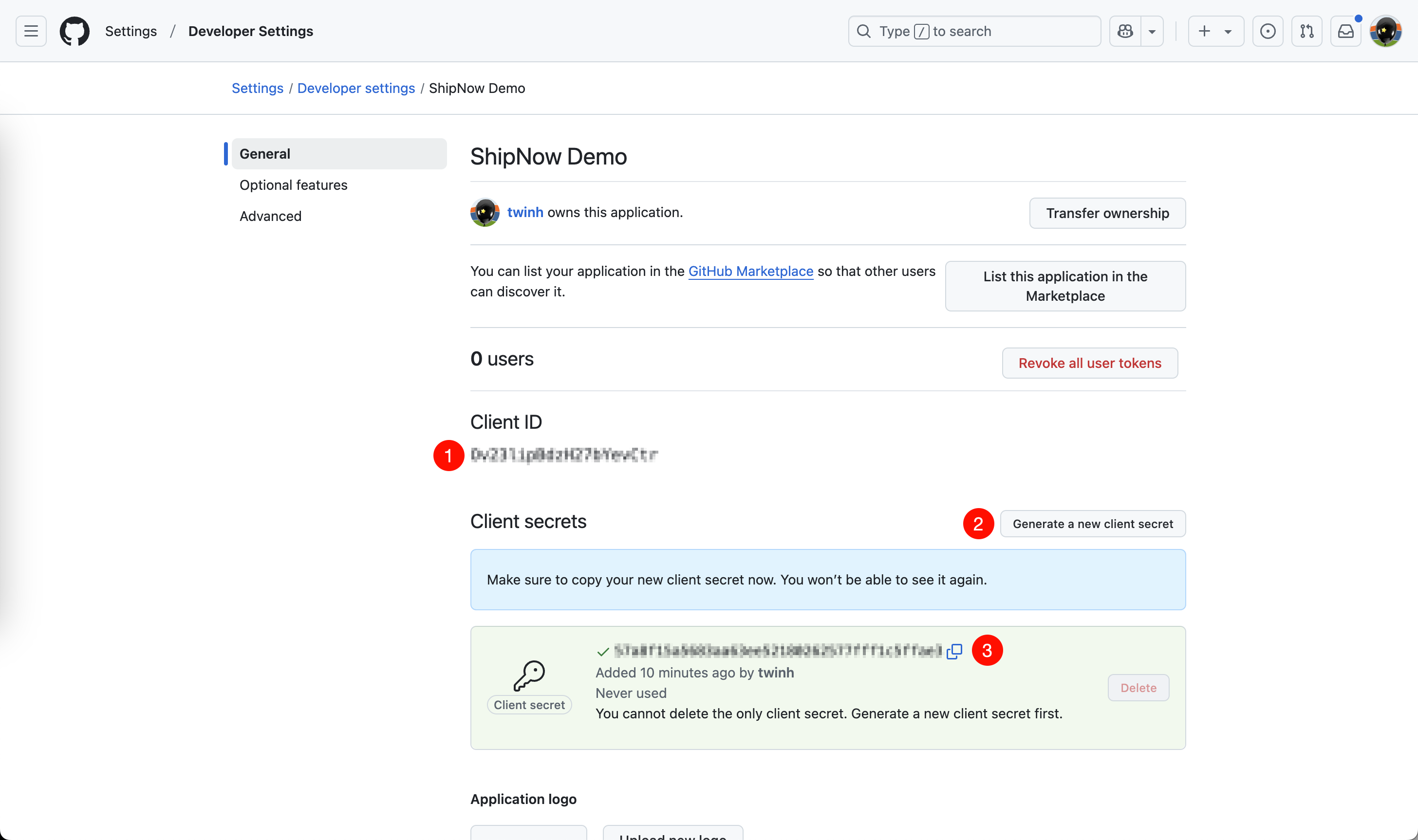
Generate Client Secret
- After creating the application, you'll see the Client ID
- Click "Generate a new client secret" to create a Client Secret
- Save both the "Client ID" and "Client Secret" for the next step
Configure GitHub Login with Auth.js
If you are using Auth.js
- Add the "Client ID" and "Client Secret" to your
.env.localfile. - Enable the GitHub provider by setting
NEXT_PUBLIC_AUTH_GITHUB_ENABLEDtotrue.
Configure GitHub Login with Supabase
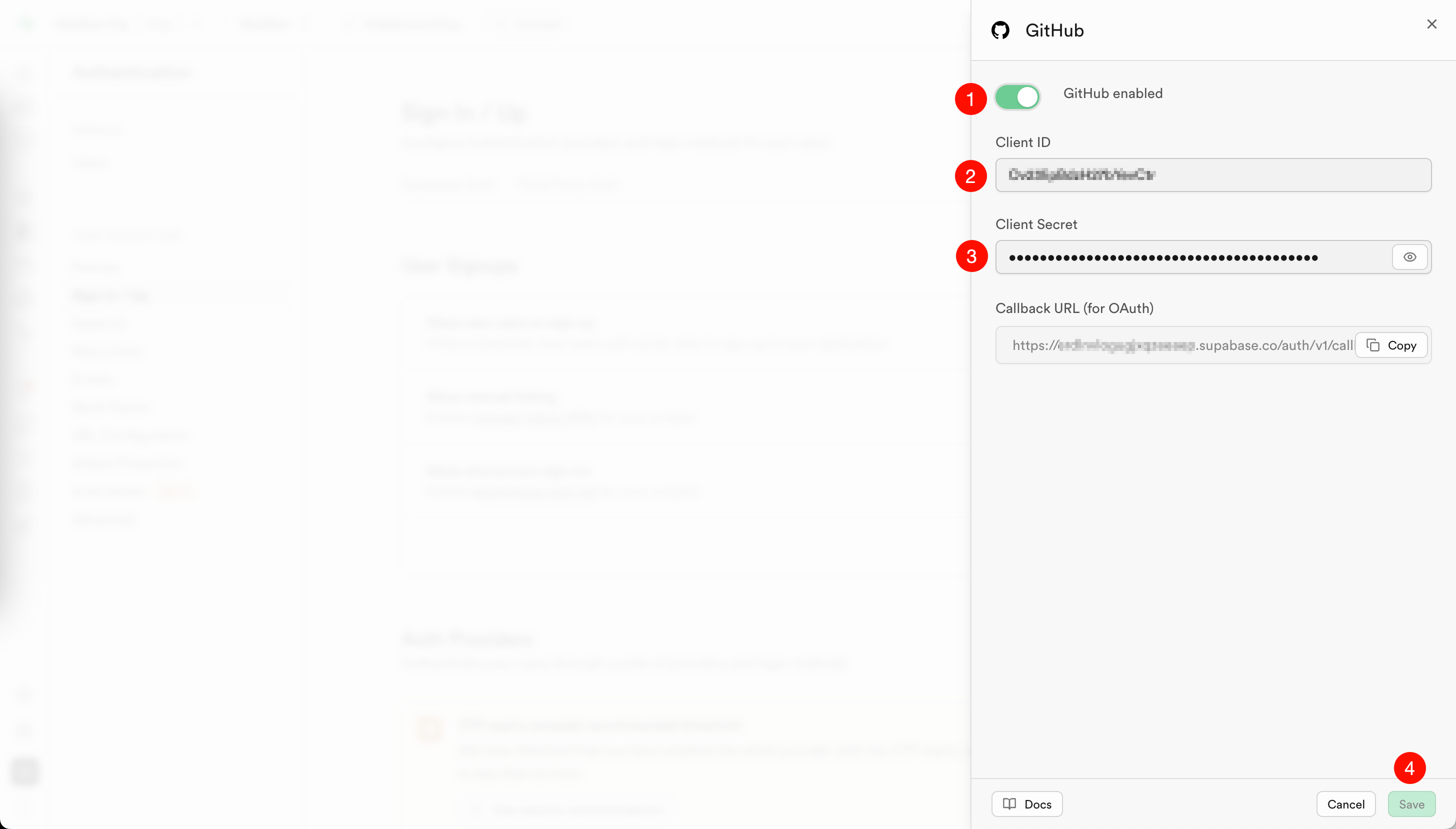
If you are using Supabase, go to Supabase GitHub Login Configuration
- Check "GitHub enabled"
- Add the "Client ID" and "Client Secret" from the previous step
- Click "Save"
Use GitHub Login in ShipNow
Go to your app and click the "Sign in" button, then click "Sign in with GitHub"
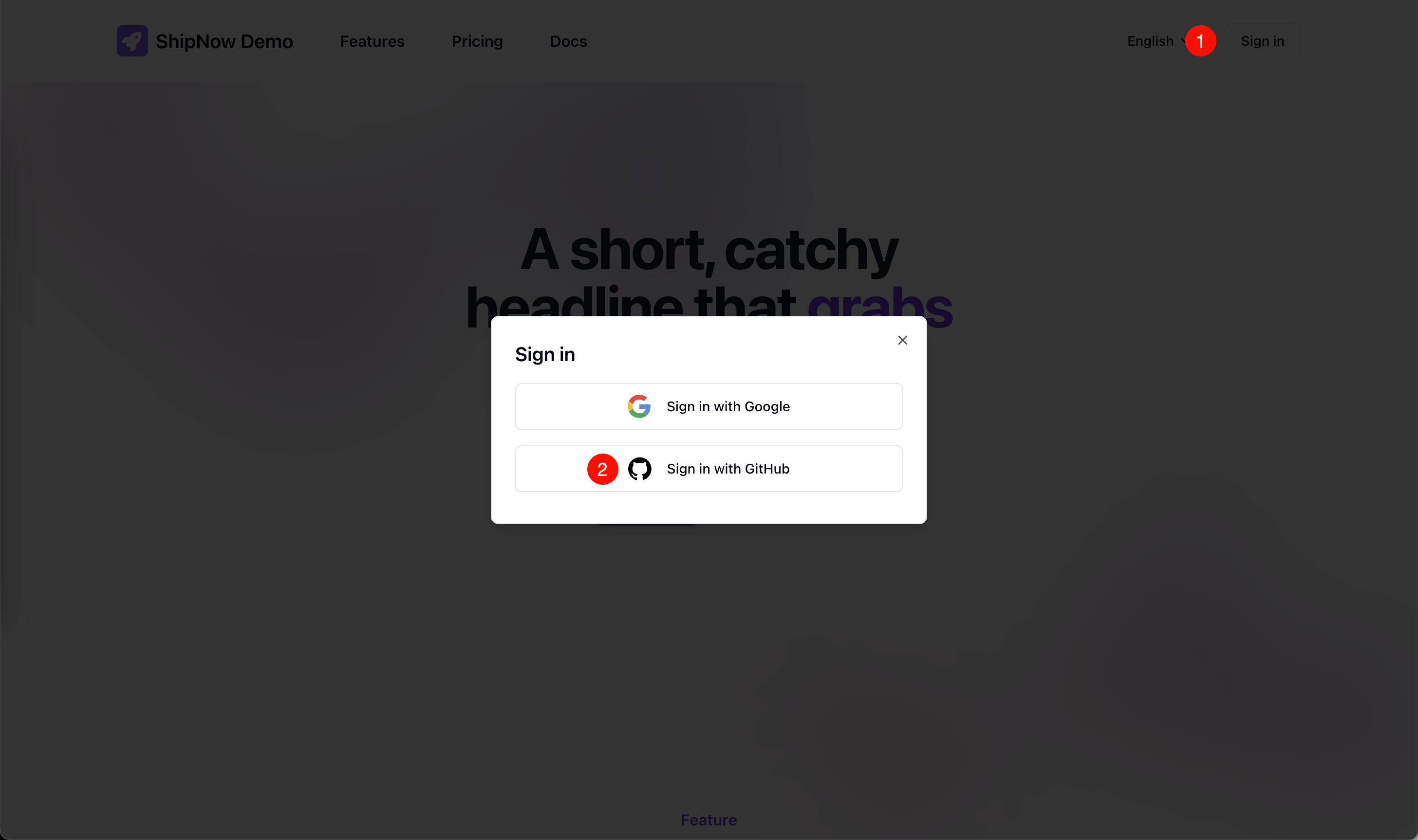
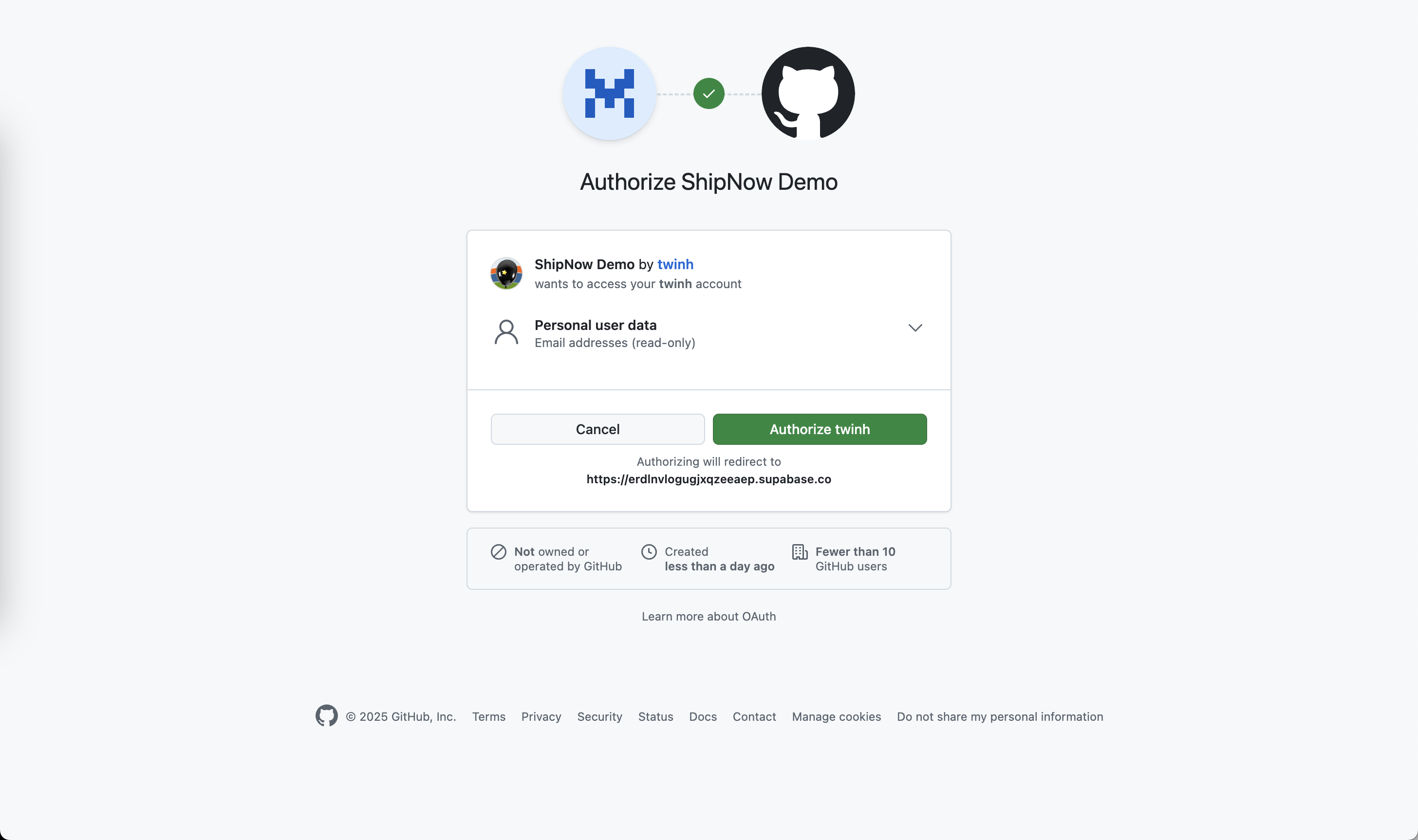
GitHub Login Page Preview
You will be redirected to GitHub login page, after authenticating you will be redirected back to your app